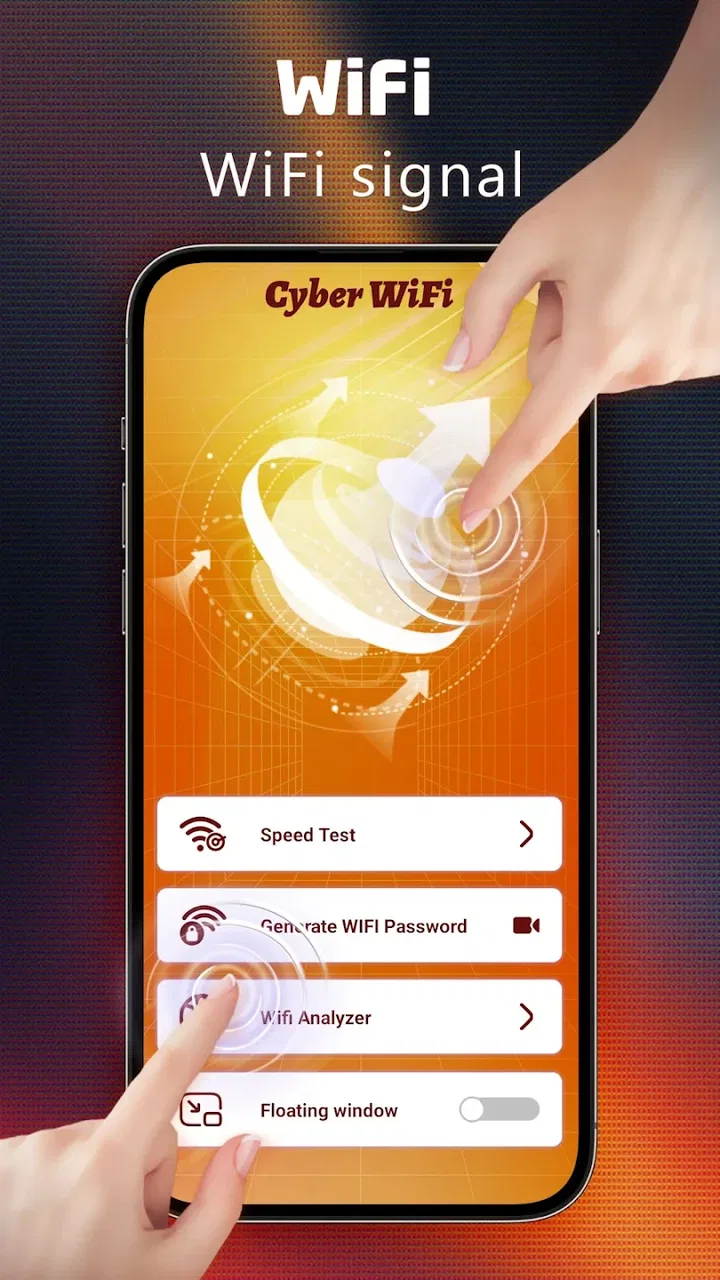
Cyber WiFi
- 4.2
- Rating
- 100.00K
- Installs
- Free
- Price

 Analysis by App-foxy
I approached Cyber WiFi as a small utility for two jobs that usually live in separate apps: checking the nearby wireless environment and opening frequently used tools quickly. That combination sounds simple, but it changes how useful the app feels in everyday situations. A WiFi analyzer is valuable when a connection behaves strangely; a launcher is valuable when it removes a few repeated taps. The real test is whether those two roles work together without making setup confusing.
Cyber WiFi is a free Android tools app from WANWIN LIMITED. It is intended for Everyone, runs on Android 10 or later, and is currently at version 1.0. Its store summary presents it as a smart WiFi analyzer paired with a quick launcher, while the short description calls it “Cyber WiFi.” I found the concept more practical than flashy: it is best viewed as a troubleshooting companion, not a replacement for a full network-management system.
Where the experience can become confusing
The first point where a new user may hesitate is the difference between seeing wireless information and actually fixing a connection. An analyzer can help you understand the local WiFi situation, but it cannot repair a damaged router, improve a weak broadband plan, or make a distant signal behave like a nearby one. That distinction matters because the app’s usefulness depends on how you interpret what it shows.
You May Also Like

 Pandora - Music & Podcasts
Pandora’s Music Is Easy to Start, but Harder to Recover
Pandora’s strength is its low-effort path from a seed to a station. Its weak spot is how much confidence it asks you to place in connection, setup, and quiet recovery.

 8 Ball Pool
 Is Built on Rivalries, Rematches, and Routine
A close look at the rivalries, rematches, shared routines, and unanswered safety questions that turn a quick pool match into a persistent mobile community.

 Samsung Music
’s Quiet Strength Is Playing What You Already Own
Its reach comes less from spectacle than from dependable access to a personal library. That simplicity is both the app’s strongest retention engine and its ceiling.

 AccuWeather: Weather Radar
AccuWeather Review: A Quick, Clear Forecast for Everyday Decisions
For everyday plans, the best forecast is the one you can understand quickly. AccuWeather makes rain timing, radar, and local conditions easy to act on, with a few trade-offs.

 Hill Climb Racing
Why Hill Climb Racing Still Turns Crashes Into One More Run
A tiny car, a bumpy hill and one more upgrade: Hill Climb Racing keeps resurfacing because its simple chaos makes every near-miss feel personal.

 AliExpress - Shopping App
AliExpress Makes Global Shopping Feel Personal, but Shoppers Bear the Risk
AliExpress turns a global marketplace into a pocket-sized discovery engine. Its reach is useful, its shopping loop compelling, and its trade-offs easy to miss.
More From Our News Desk
View All News


I would begin with a clear question: am I trying to find a better place for my phone, understand why a network feels crowded, or simply reach a tool faster? If the answer is one of those, the app has a sensible role. If I want parental controls, router configuration, speed-test history, device blocking, or a complete home-network dashboard, I would look for a dedicated alternative instead.
The quick-launch side can also create an expectation problem. A launcher is about access, not necessarily automation. It can reduce the time needed to open a useful function, but it should not be treated as a background repair service. If a connection drops because of a router issue, changing launch shortcuts will not solve it. I found that keeping the app’s purpose narrow made the experience easier to judge.
Another possible sticking point is that wireless analysis depends on the phone’s own view of the environment. A handset may see networks differently from a laptop, access point, or mesh node placed in another room. Results are therefore most useful when I take them from the location where I actually use the phone. A reading beside the router may look healthy while the sofa, bedroom, or balcony remains unreliable.
What I would check before blaming the app
Before drawing conclusions from any analyzer screen, I would confirm that the phone’s WiFi is enabled and that it is close enough to detect the network I care about. I would also check whether the phone is connected to the intended network rather than a guest network, extender, or mobile hotspot. Mixing those up can make an accurate reading look irrelevant.
Android settings are another important part of the process. On some phones, nearby wireless discovery is tied to system location controls or related access settings. If scanning appears empty, incomplete, or inconsistent, I would inspect the system permissions and privacy switches first, then reopen the app. That is a general Android setup check, not evidence that Cyber WiFi itself is malfunctioning.
I would also give the scan a fair environment. Moving around while expecting an immediate, stable picture can produce confusing results because the phone is changing position and radio conditions at the same time. A better method is to stand still in one location, wait for the display to settle, and then repeat the check in a second location. The comparison is more useful than a single isolated reading.
For a home network, I would record the practical context in my head: the room, the approximate distance from the router, whether a door or wall is between them, and whether other people are actively streaming or downloading. This turns the app from a screen of technical information into a simple decision tool. If the connection is poor only in one room, placement may be the main issue; if it is poor everywhere, the next step is probably outside the app.
A setup routine that avoids false conclusions
My preferred starting routine is deliberately short. I connect to the network I normally use, open the analyzer, remain in the same spot for a moment, and note what the app presents. Then I repeat the check near the router and in the problem area. I do not change several things at once, because moving the router, restarting the phone, and switching networks together makes it impossible to know what helped.
If the app includes a quick route to its main functions, I would use that after the first scan rather than exploring every option immediately. The launcher element is most useful when it becomes part of a repeatable habit: open the tool, inspect the current situation, make one physical or network change, and check again. That workflow gives the shortcut a purpose instead of treating it as decoration.
It is also worth checking the phone’s basic state. Battery-saving behavior, an unstable connection, or a device that has just switched between wireless networks can make any network utility feel slow or inconsistent. I would wait until the phone shows the correct connection, then run the check again. A clean starting state makes troubleshooting much less frustrating.
Because the app is at version 1.0, I would keep expectations realistic around polish and edge cases. A first release can still be useful, but small differences between Android phones are common. Menus, permission prompts, and system behavior may not look identical across manufacturers. If a screen behaves differently from a friend’s phone, I would first compare Android versions and system settings rather than assuming the core idea is broken.
Turning the analyzer into an everyday workflow
The most useful scenario for me is a familiar one: a video call works well at the desk but becomes unreliable in another room. Instead of repeatedly restarting the router, I would use Cyber WiFi in both locations, compare what the phone sees, and then test a simple change such as moving closer to the access point or removing an obvious obstruction. The app does not make the decision for me; it helps separate a location problem from a general outage.
A second use case is choosing where to place a device that depends on WiFi. If I am setting up a smart display, tablet, or streaming box, I can use the phone as a quick survey tool before committing to a location. The important trade-off is convenience versus precision: a phone-based check is fast and portable, while professional network survey software gives a deeper view and is more appropriate for complex buildings or business deployments.
The launcher can be helpful for people who repeatedly troubleshoot several networks. For example, I might check the home network in the morning, inspect a shared office connection later, and use the same entry point rather than searching through the app drawer. That benefit is small each time, but repeated small savings are exactly where a quick-launch feature earns its place.
One non-obvious habit is to compare the same spot at different times rather than assuming a single reading represents the whole day. If the connection is fine early but poor during the evening, local usage or changing wireless conditions may be involved. I would not treat that pattern as proof of one specific cause, but it tells me when to test and whether the problem is constant or occasional.
Another useful trade-off is to prioritize consistency over chasing the strongest-looking result. A location that produces a slightly less impressive reading but remains stable while I move around may be better than a narrow spot with a stronger signal. I would use the analyzer as one input, then confirm the result with the actual activity I care about, such as browsing, a call, or video playback.
I would also avoid changing channels or router settings solely because an analyzer shows nearby networks. Those changes belong in the router’s own controls and can affect every connected device. The safer workflow is to use Cyber WiFi to notice a possible wireless-environment issue, then make one modest router adjustment only if I understand the setting and can reverse it.
When the problem is not Cyber WiFi
Some connection failures happen above the WiFi layer. If the phone shows a strong connection but websites remain unreachable, the issue may involve the internet service, DNS, an account problem, or the destination itself. In that situation, an analyzer can correctly show a healthy local link while the wider internet is unavailable. I would test another website or device before treating the app’s result as contradictory.
If every device in the home loses access at the same time, I would inspect the router and service status before spending time inside a phone utility. Restarting network equipment may be reasonable when it is part of my normal troubleshooting routine, but I would not repeatedly reset it without a reason. Cyber WiFi is more useful for comparing local wireless conditions than for diagnosing an entire provider outage.
When only one phone struggles, the cause may be device-specific. A pending system update, a saved network profile, battery management, or hardware damage can affect one handset while other devices work normally. I would compare the same location with another device and reconnect carefully before concluding that the analyzer has failed.
There is also a difference between weak signal and poor performance. A strong signal does not guarantee fast service, and a weaker signal can still be perfectly usable for light browsing. I would judge the result against the task I need to perform. Someone who only sends messages has different requirements from someone making a high-quality video call or transferring large files.
How it compares with familiar alternatives
The usual alternative is to rely on Android’s built-in WiFi page. That is simpler and often enough for checking the current network, but it may not provide the same focused troubleshooting experience or quick access in one place. Cyber WiFi makes more sense when I want a dedicated utility rather than a basic connection indicator.
At the other end, specialist analyzer apps and desktop tools can offer more detailed charts, historical comparisons, channel planning, or professional survey workflows. Those options are better for network installers, large homes, offices, or anyone who needs documentation. Cyber WiFi is more approachable for a casual check, but I would not choose it as my only instrument for a complicated deployment.
Router-maker applications are also different. They may provide account access, firmware controls, guest-network management, device lists, or mesh configuration. Cyber WiFi should not be expected to replace those manufacturer tools. Its appeal is that it focuses on the phone-side experience of inspecting WiFi and reaching useful functions quickly, rather than managing one particular brand of networking hardware.
The free price makes experimentation easy, especially for someone who wants a lightweight tool without committing to a subscription. Still, free does not automatically mean complete. I would choose it for quick diagnosis and repeat access, then move to a more specialized option if I need reporting, advanced controls, or a permanent network-monitoring setup.
Who will benefit and who should skip it
I think Cyber WiFi suits Android users who occasionally wonder why WiFi behaves differently from one room to another. It is also a reasonable fit for people who like having a focused utility available without navigating through several system menus. Renters, students, families, and anyone moving between home and office networks can get practical value from a portable check.
I would be more cautious recommending it to a network professional who needs deep diagnostics, long-term records, or exact planning tools. I would also suggest skipping it if the real goal is router administration, internet-speed history, device security, or parental controls. Those needs call for a different category of application, and adding a launcher will not fill those gaps.
The age rating of Everyone is reassuring for households looking for a straightforward utility, although that label does not change the need to understand any Android access prompts shown during setup. I would read each system request in context and enable only what is needed for the function I am using. That is good practice with any network-related app.
My practical verdict
Cyber WiFi is a focused, free tools app with a sensible pairing: wireless inspection for moments of uncertainty and quick launching for repeated access. Its strongest quality is not that it promises to solve every network problem, but that it encourages a more orderly troubleshooting routine. Check the actual location, compare conditions, change one thing, and test again.
The app has an average rating of 4.2 from around 343 ratings, with 39 written reviews and over 100 thousand installs. Those figures suggest that it has attracted meaningful early interest, while its version 1.0 status tells me to judge it as a young utility rather than a mature professional platform.
My recommendation is positive for light, practical use. I would install it when I wanted a convenient WiFi check on an Android phone running Android 10 or later, especially if the quick-launch side matched my daily routine. I would not rely on it alone for a complex network investigation, and I would not blame it for problems caused by the router, internet provider, phone settings, or physical signal barriers.
The best reason to try it is its workflow, not a promise of magic repair. Used that way, Cyber WiFi can help turn vague complaints such as “the WiFi is bad in here” into a clearer question: is the issue location, wireless congestion, the device, or the internet connection itself? For a free utility from WANWIN LIMITED, that is a useful role, provided I keep its limits in view.
FAQs for Cyber WiFi
01What is Cyber WiFi and how does it work?
Cyber WiFi is a mobile application designed to provide secure and private internet connectivity. It encrypts your data, protecting it from hackers and other threats while you browse the internet on public or unsecured networks. By routing your connection through secure servers, it ensures that your online activities remain confidential.
02Is Cyber WiFi available for both Android and iOS devices?
Yes, Cyber WiFi is available for both Android and iOS platforms. Users can download the app from the Google Play Store or the Apple App Store. The app is optimized to work efficiently on a wide range of devices, providing seamless protection regardless of your operating system.
03Are there any subscription fees for using Cyber WiFi?
Cyber WiFi offers both free and premium subscription plans. The free version provides basic protection, while the premium plan offers advanced features like faster connection speeds and access to a wider range of servers. Users can choose the plan that best fits their needs, with the option to upgrade anytime.
04How user-friendly is the Cyber WiFi interface?
Cyber WiFi boasts a user-friendly interface designed for easy navigation. The app features a straightforward setup process and intuitive controls, making it accessible for users of all experience levels. Even those new to VPNs will find it simple to establish a secure connection with just a few taps.
05What kind of customer support is available for Cyber WiFi users?
Cyber WiFi offers comprehensive customer support to assist users with any issues they may encounter. Support is available through various channels, including email, live chat, and an extensive FAQ section on their website. Premium users may also receive priority support for faster resolution of their concerns.
Pros
- User-friendly interface for easy navigation.
- Fast connection speeds for seamless browsing.
- Supports multiple devices simultaneously.
- Strong encryption for secure connections.
- No data logging ensures privacy protection.
Cons
- Limited server locations available.
- Free version has data usage restrictions.
- In-app ads can be intrusive at times.
- Occasional disconnections may occur.
- Premium features are subscription-based.

Cyber WiFi
Gallery